
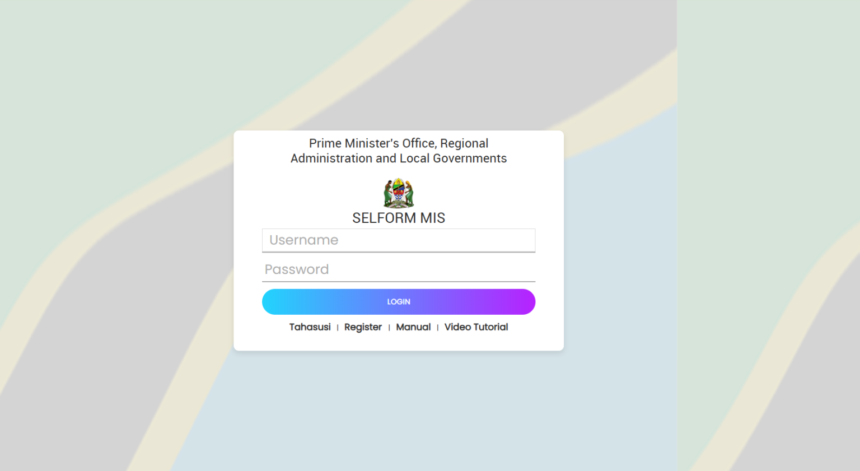
Selform TAMISEMI 2026: How to Change Your Form Five Combination and College Choices, Are you a Form Four graduate eagerly awaiting the TAMISEMI Form Five Selection for the 2025/2026 academic year? If you want to adjust your subject combination, change your preferred high school, or update your college choices, there is good news.
The President’s Office, Regional Administration and Local Government (PO-RALG / TAMISEMI) opens the Selform MIS Portal every year. This window allows candidates to modify their preferences based on their actual performance in the Certificate of Secondary Education Examination (CSEE) before the official selection results are released.
What Can You Update on the Selform TAMISEMI Portal?
The primary role of the student (Form Four graduate) within the Selform system is to ensure all personal details and academic paths align with their final NECTA results. Through the portal, you can update:
-
Academic Choices: High school combinations, technical colleges, and specialized diploma choices.
-
Personal Contact Information: Home address, active mobile phone numbers, and email addresses.
Step-by-Step Guide to Change Your Combination via Selform MIS TAMISEMI
Follow these clear, step-by-step instructions to successfully log in and update your preferences on any smartphone, tablet, or computer connected to the internet.
Step 1: Access the Official Portal
Open your preferred web browser (such as Google Chrome, Safari, or Mozilla Firefox) and navigate directly to the official TAMISEMI registration link: 👉 https://selform.tamisemi.go.tz
Step 2: Register as a New User
If this is your first time accessing the portal for the 2026 selection cycle, look at the bottom menu or login prompt and click on the link that reads: “For Candidates, Click here to Register”.
Step 3: Verify Your Identity
To secure your profile, the system requires you to verify your identity. Carefully fill in the following details:
-
NECTA Index Number: Ensure you use the correct format (e.g., S0101.0020.2018 or P0101.0020.2025).
-
Personal Information: Enter your official Surname and your Year of Birth as they appear in the NECTA database.
-
Security Question: Provide the correct answer to the quick verification question displayed on the screen.
Step 4: Create a Secure Password
Once your identity is verified, a new window will prompt you to create a secure password. Choose a password you can easily remember, as you will need it to log in to the system daily to check your selection status.
Step 5: Update and Save Your Changes
After successfully setting up your password, log into your dashboard. Navigate through the sections to review your marks and update your school combinations or college programs.
⚠️ Important Note: Whenever you change your combination, school preferences, or contact details, always remember to click the “SAVE & NEXT” button before navigating away or closing the page. Unsaved changes will be lost.
Why Should You Change Your Combination?
Many students choose combinations before seeing their final CSEE results. Reviewing your selection on the Selform MIS portal ensures that you qualify for the combinations you have picked, maximizing your chances of being selected for public high schools or government-sponsored colleges in the first round.
Stay tuned for more educational updates, and make sure to share this guide with fellow Form Four graduates!